
How-to · Casting
Cast from iPhone to an Android TV or Fire TV.
AirPlay and Chromecast give up on MKV, DTS and Dolby Vision. 4789 TV is a small receiver app for the television. Your iPhone finds it on Wi-Fi and hands over the video. The TV streams it directly, and the phone becomes the remote.
Steps
5 steps. One job each.
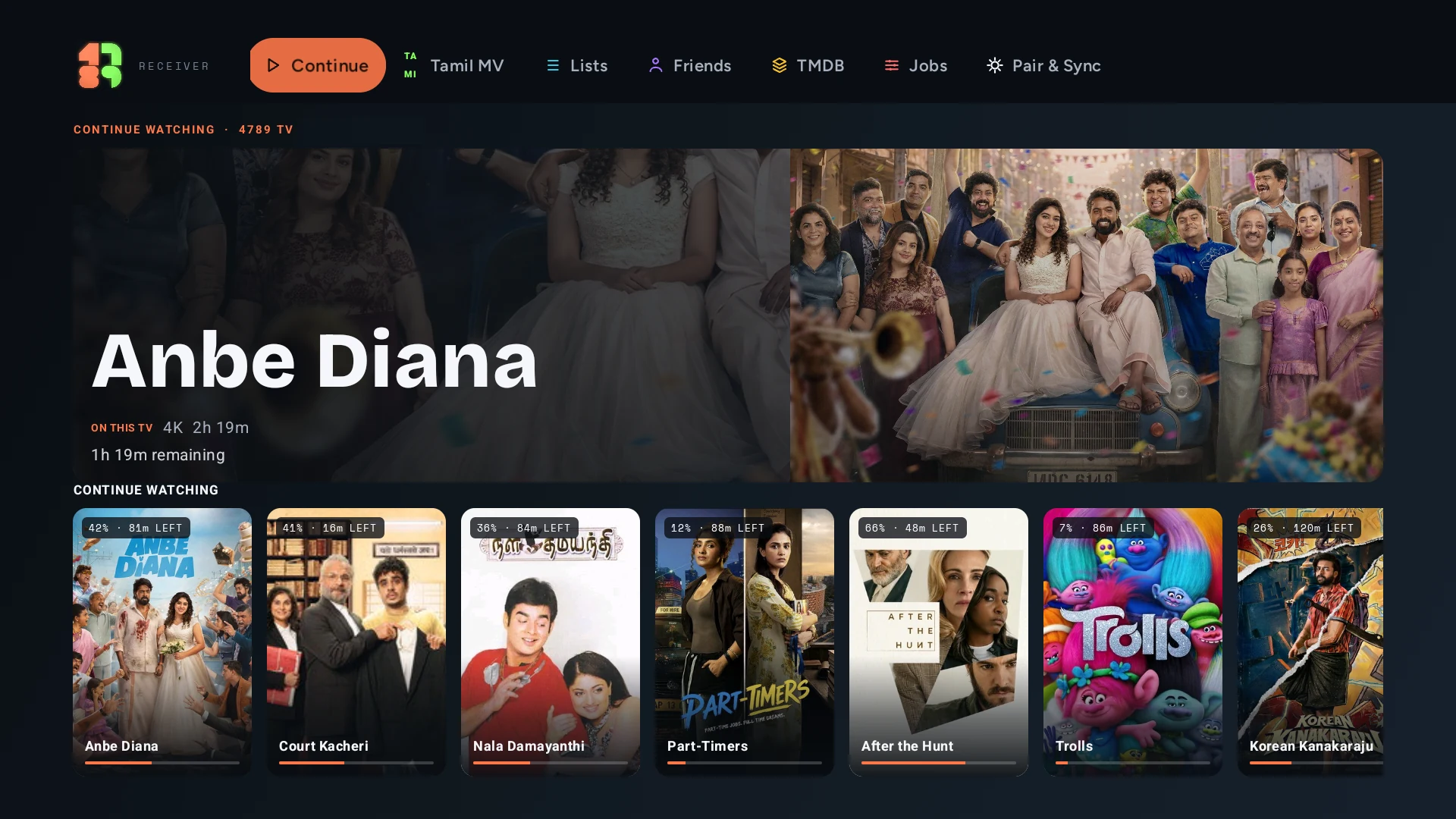
- 01
Install 4789 TV on the television
Install Downloader from the TV app store. Open it and enter code 5873252, or type
4789library.com/tv. Allow Install unknown apps when asked, then Install and Open. - 02
Leave the TV on the lobby screen
4789 TV must be open on the television so the phone can find it. Both devices must be on the same home Wi-Fi.
- 03
Open a title on iPhone
Tap any movie or episode, then tap Play on TV. Pick your television from the list.
- 04
Control from the phone
A cast bar docks at the bottom of the phone. Tap it for scrubbing, 10-second jumps, audio and subtitle tracks, and the next episode.
- 05
Bring it back
Leaving the room? Tap Play on this iPhone. Playback continues on the phone at the same second, with the same tracks.
Good to know
The details.
Supported TVs
Android TV, Google TV and NVIDIA Shield on Android 9 or newer. Fire TV on Fire OS 7 or newer. Not Apple TV, Roku, Samsung or LG.
Why not screen mirroring
Mirroring re-encodes the picture and drains the phone battery. 4789 sends the TV the video address and the time position. The TV plays the original file.
Sound
In the TV player settings, pick TV speakers, ARC/optical, or eARC/AVR passthrough for Atmos, TrueHD and DTS-HD.
TV not found
Check iOS Settings → Privacy & Security → Local Network has 4789 on. Guest and hotel Wi-Fi block devices from seeing each other. Turn off VPNs.